Setting up Speakup Article using the Browser Extension
The browser extension makes it easy to set up any website with Speakup Article technology. When used through the Speakup Article SaaS Website, you will be guided to install and use it. The extension will be removed once the setup is completed.
Installation
Download the extension from the Chrome Web Store:

Support for other browsers coming soon.
Using the Extension
When asked, click the extension icon to connect it to the Speakup Article site. The icon color will change to indicate the connection status:
| Icon | Status | Meaning |
|---|---|---|
 | Disconnected | The extension is not active |
 | Connecting | The extension is connecting to the website |
 | Connected | The extension is active and ready to setup your website |
Setup Process
Step 1: Connect to Your Website
When the icon shows green, the Speakup Article website is connected and ready. Click the button to load your page in a clean view (without advertisements or JavaScript) showing only the content.
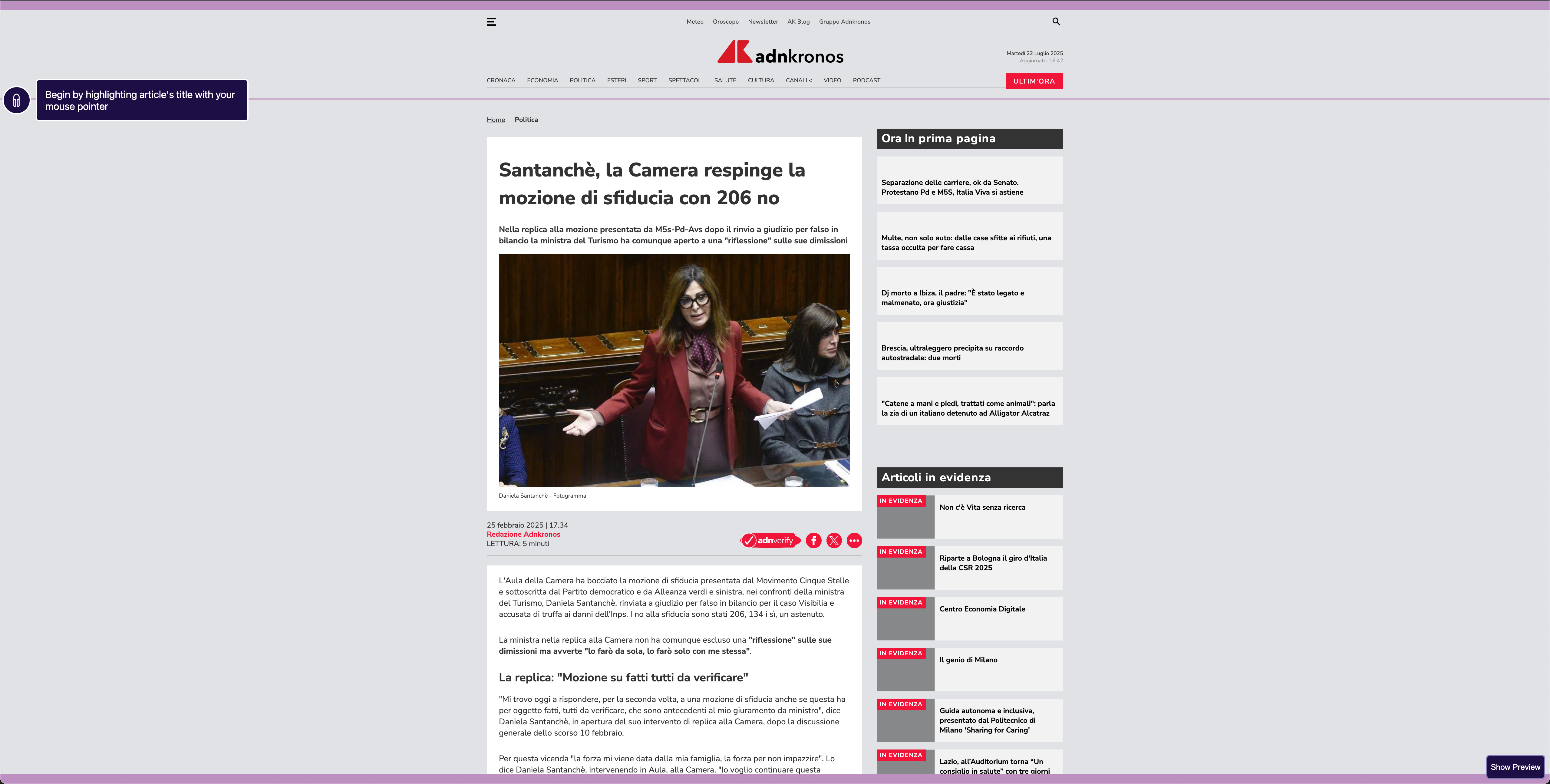
Website within the extension viewer
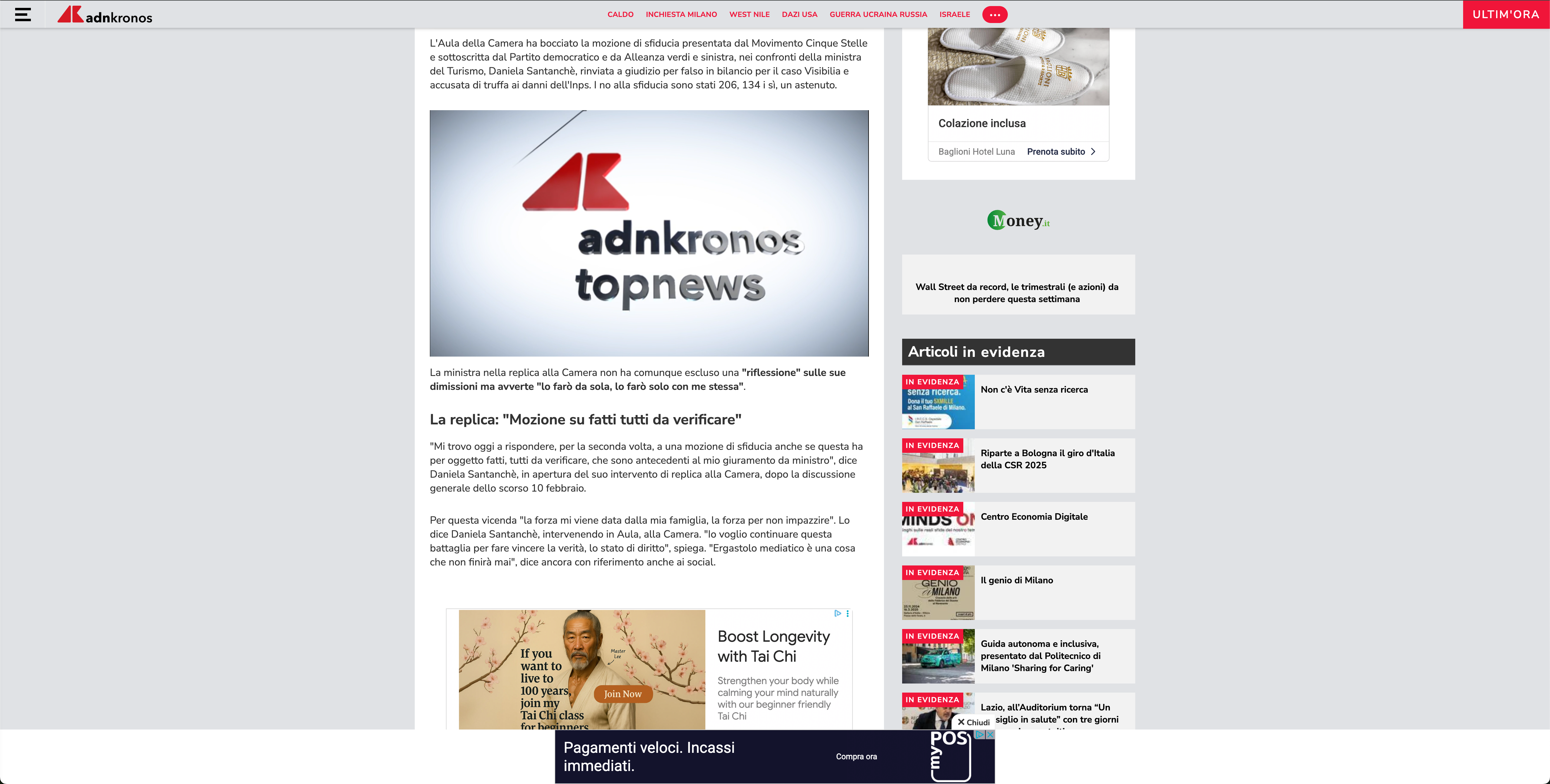
Website viewed normally
Step 2: Select Content Elements
The extension guides you through selecting the elements that Speakup Article will use when reading your article.
Selection indicators:
- Hovered elements are highlighted with a box outline
- Selected items appear with a filled background
You need to select:
- The article title
- The first paragraph of the body
- The last paragraph of the body
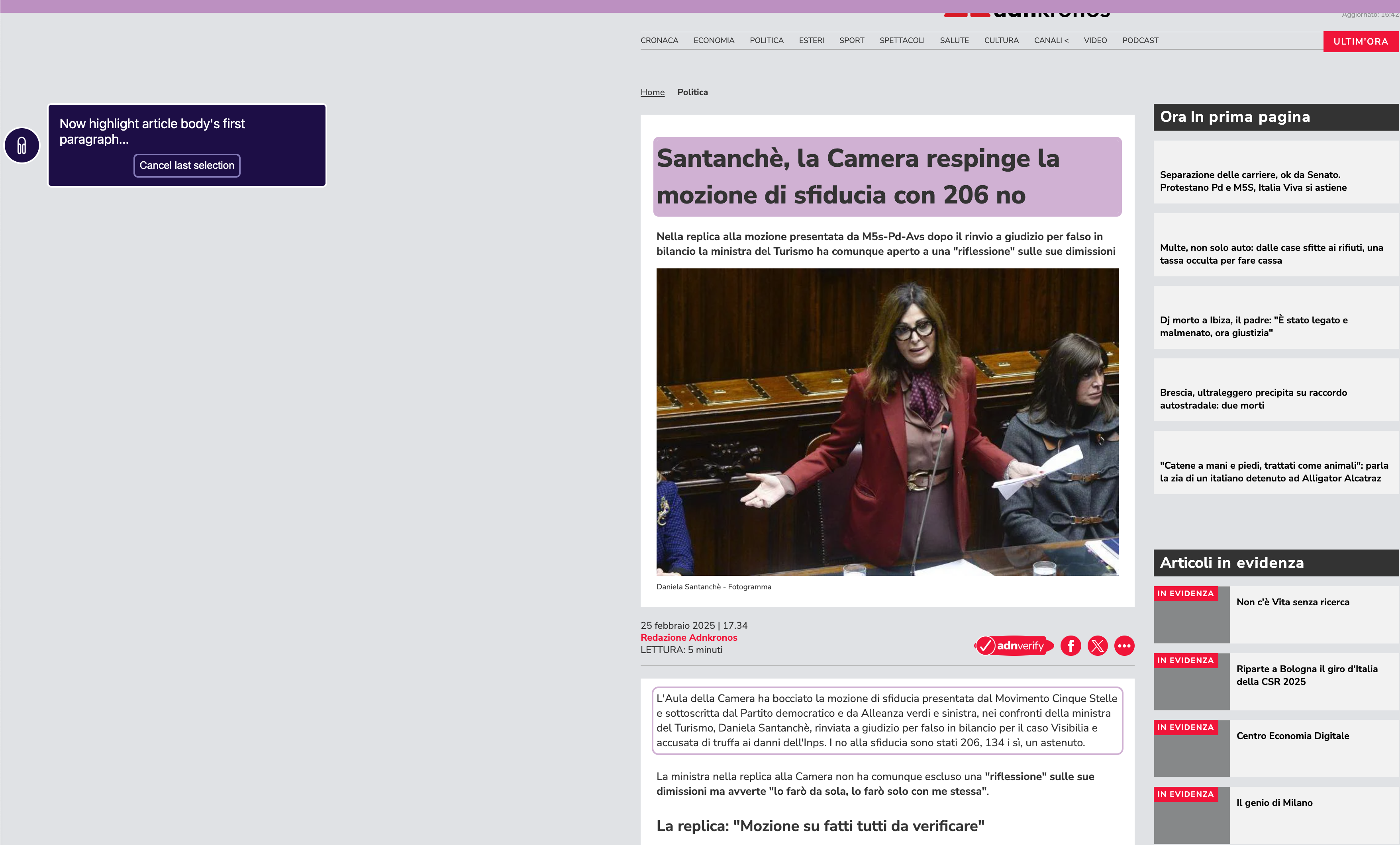
Selected title and highlighted first paragraph before selection
Step 3: Exclude Elements (Optional)
Once the body is selected, you can exclude elements that should be ignored by the parser (e.g., advertisements, related articles).
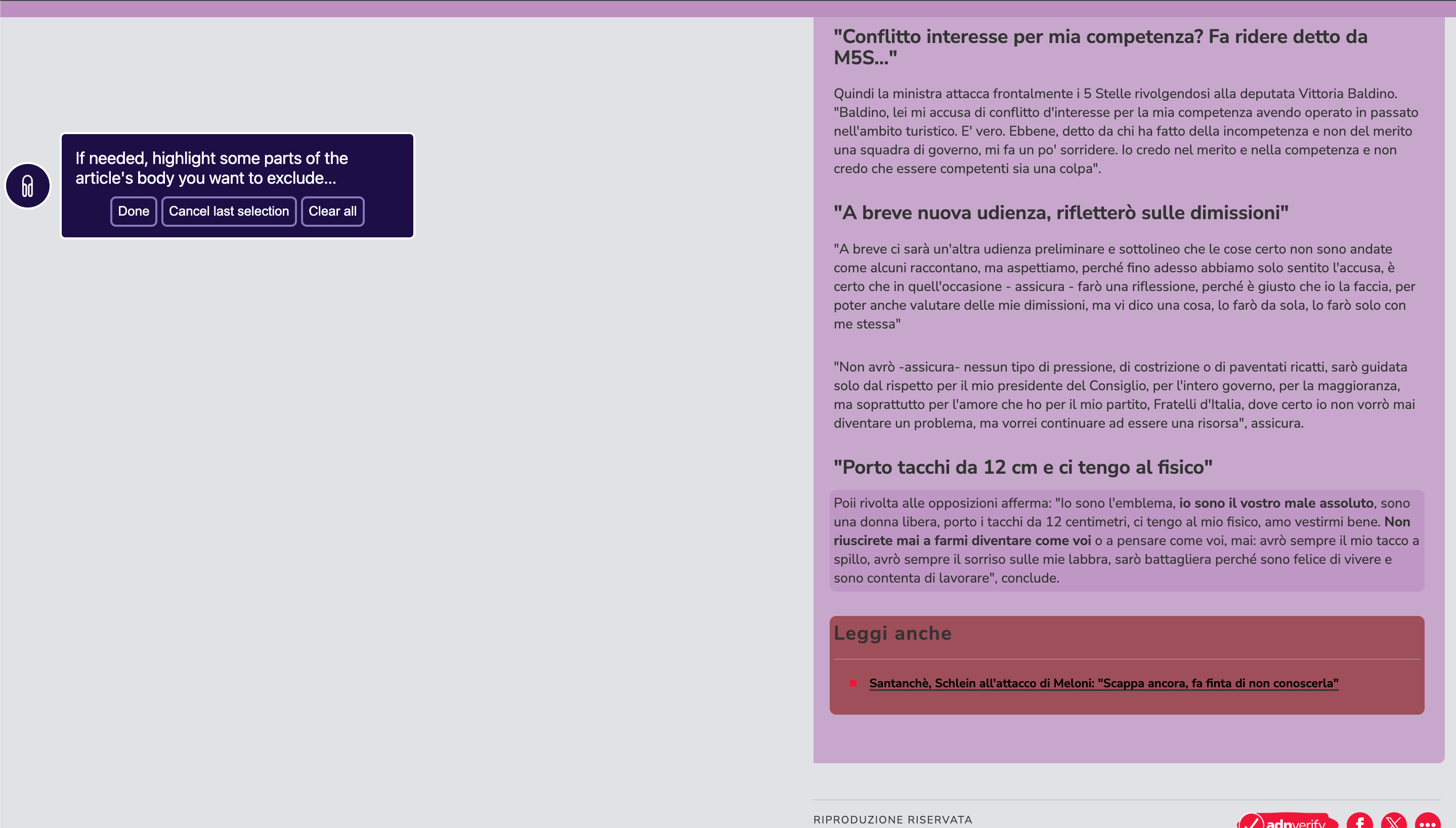
Body selected with an excluded item
Step 4: Preview Selection
Use the preview button in the bottom right corner to see exactly what content has been selected:
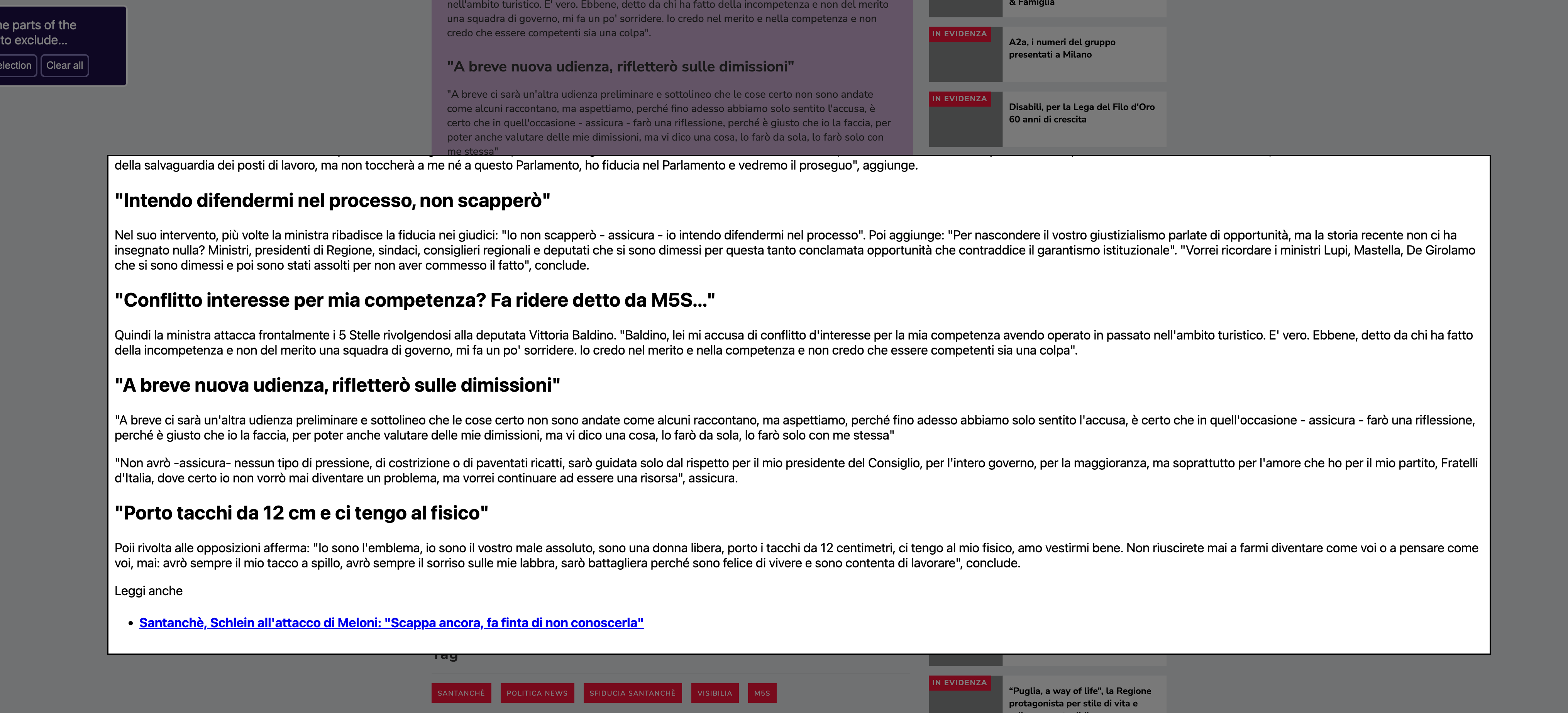
Selected content previewer
Step 5: Complete Setup
Click the button to continue after selecting all items to ignore. The selected content will be transmitted to the SaaS webpage for analysis.
If there's any mismatch in terms of selected items, you'll be automatically redirected to support, as your website structure might require human analysis.
Need Help?
If you have any doubts, do not hesitate to contact us at support@audioboost.com.
Thanks for using our extension!